Given the same prompt about a red mug, Adobe Firefly, Runway, and Google Flow produced three different clips, with clear differences in steam, leaf shadow, and ceramic glaze.
- With one identical prompt, the three tools produced clearly different clips of a red ceramic mug, differing in steam, leaf shadow, and glaze matte quality
- Firefly outputs a native 1920 x 1080 px clip, Runway Gen-4.5 lets you pick a length from 2 to 10 seconds, and Google Flow renders steam best but only outputs 720p
- The MP4 clip from Firefly imports straight into Premiere Pro via File > Import
- This is a test with a single prompt, so the results reflect only these three clips
Table of Contents
Setup and test prompt
This article offers a quick comparison of three text-to-video tools, Adobe Firefly, Runway Gen-4.5, and Google Flow (using the Gemini Omni 1.2 Flash model), and shows how to bring a Firefly clip into Premiere Pro. The steps below were tested in November of this year on macOS 26.5.1, with Firefly running in Chrome and Runway and Flow running in Safari. The shared prompt described a locked-off close-up of a matte red ceramic mug on a light wooden table, with a thin wisp of steam rising while the shadow of a leaf slowly crosses the tabletop. The mug stays still, the whole thing is one continuous shot, and there is no text.
The tester chose a stationary subject to judge the two moving elements in isolation: steam and leaf shadow. Each platform generated one landscape clip, with no reference image and with prompt enhancement turned off. The original MP4 files were viewed as exported, with no upscaling or color correction, so the quality you see is what each tool actually delivers.
Generating video in Adobe Firefly
In Firefly, go to Video > Generate video, choose the Firefly Video model, then set 1080p, a 16:9 aspect ratio, and a 5-second duration. The exported clip measures 1920 x 1080 px. In the Generate Video workflow, Firefly's own model also gives you extra controls for camera angle and shot type.
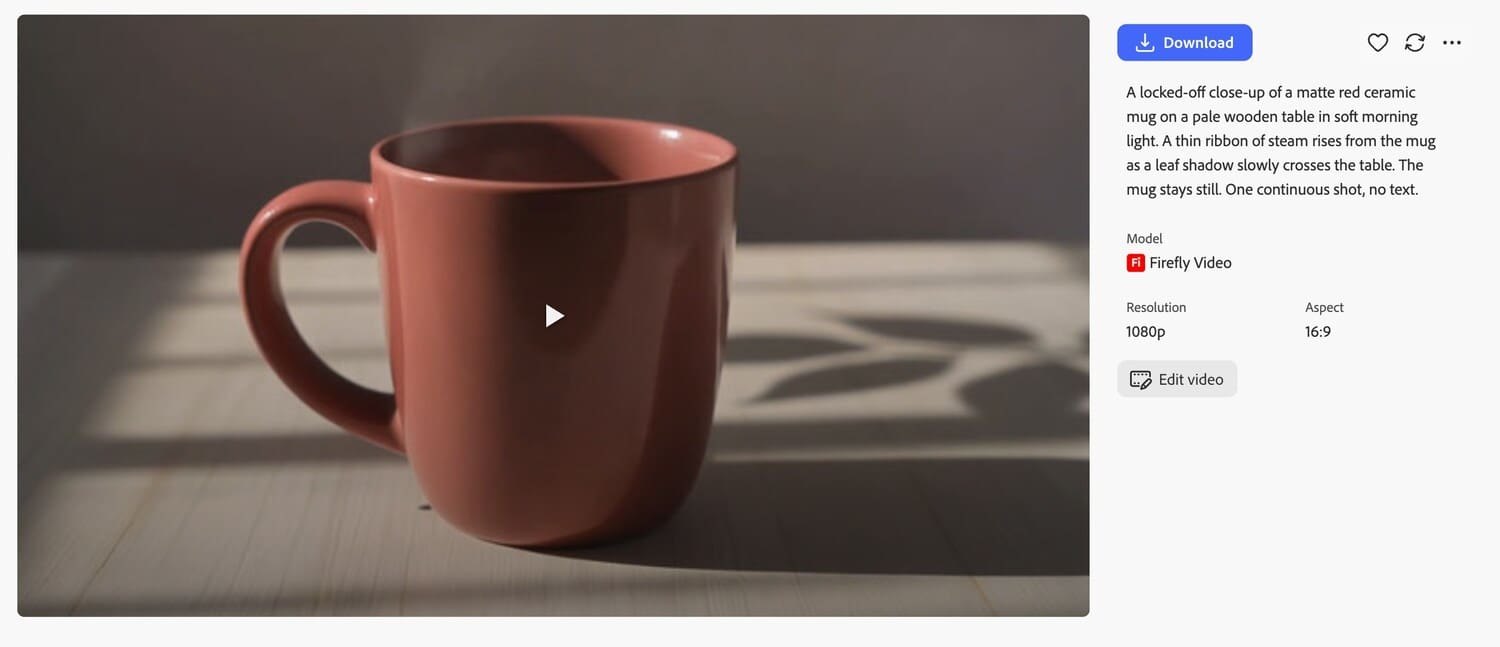
Firefly produced the tightest framing of the three clips, with a deep red glaze, clearly visible ceramic texture, and a dense shadow on the right side. The body and handle of the mug hold their shape, and the leaf shadow is most noticeable at the start of the clip, but the steam is faint against the dark background and you have to look closely to see it. If you want the steam to be a focal point, add a backlighting request to your prompt next time.
Generating video in Runway Gen-4.5
In Runway, select Gen-4.5 in the Video model picker, enter the prompt, then shorten the duration to 5 seconds. Gen-4.5 needs only text input and can generate clips from 2 to 10 seconds, which makes it the most flexible tool for length. The 5-second generation in this test cost 60 credits.
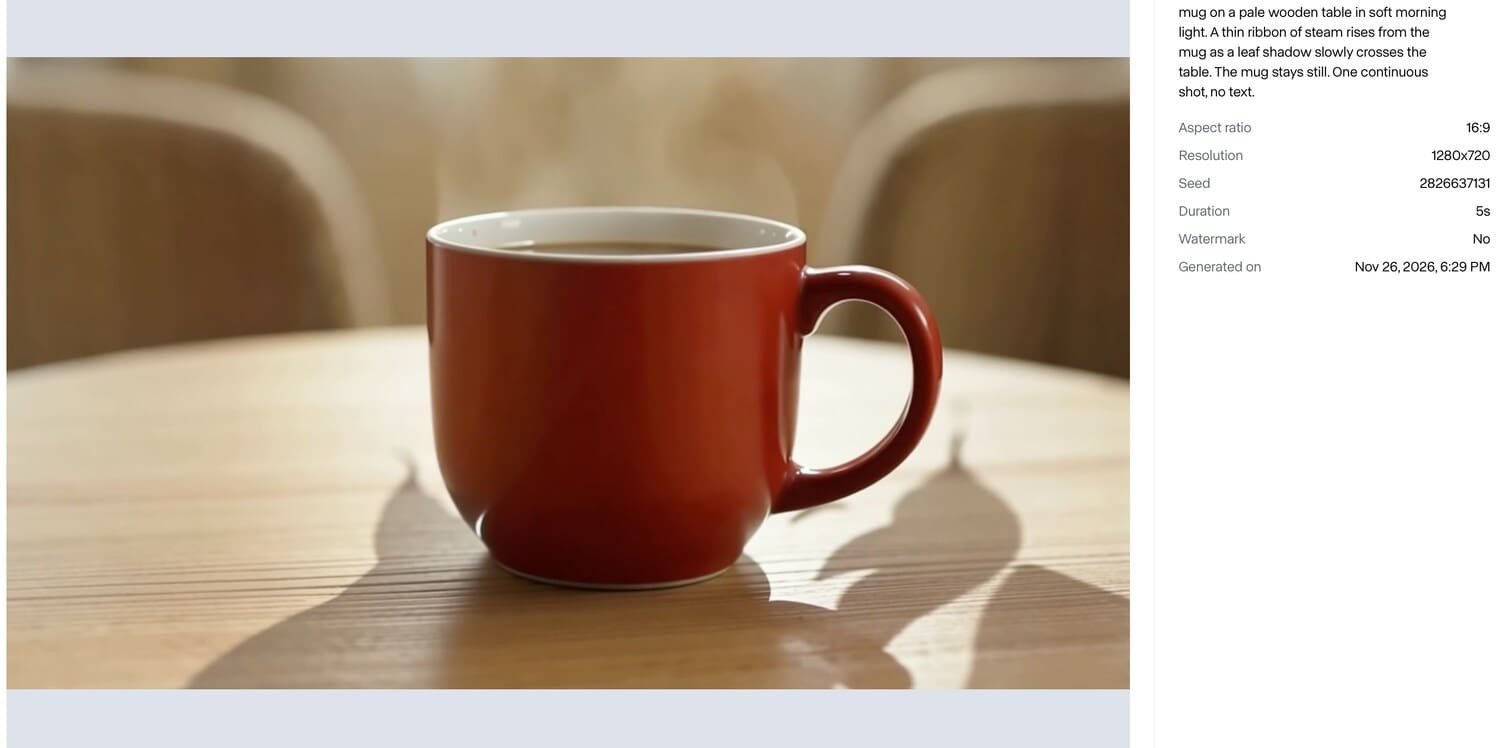
Runway centers the mug in the frame, with a bright rim and a few softly blurred chairs behind it. The sunlight is warm and directional, but the glaze looks glossy rather than matte as requested, and the steam is rather pale. The leaf shadow near the handle mostly lingers in one spot and barely travels across the table, falling short of "slowly crosses the table" in the prompt. The clip suits a product intro insert, where the highlight on the rim helps the edit.
Generating video in Google Flow
In Flow, turn off Flow Agent to use the direct prompt box, set the output to Video, choose Omni 1.2 Flash, and leave the output count at one. An 8-second generation at 720p cost 24 credits at Google's published pricing. When downloading, Flow's Download menu lists 720p as the original file, and higher resolutions are only upscale options.
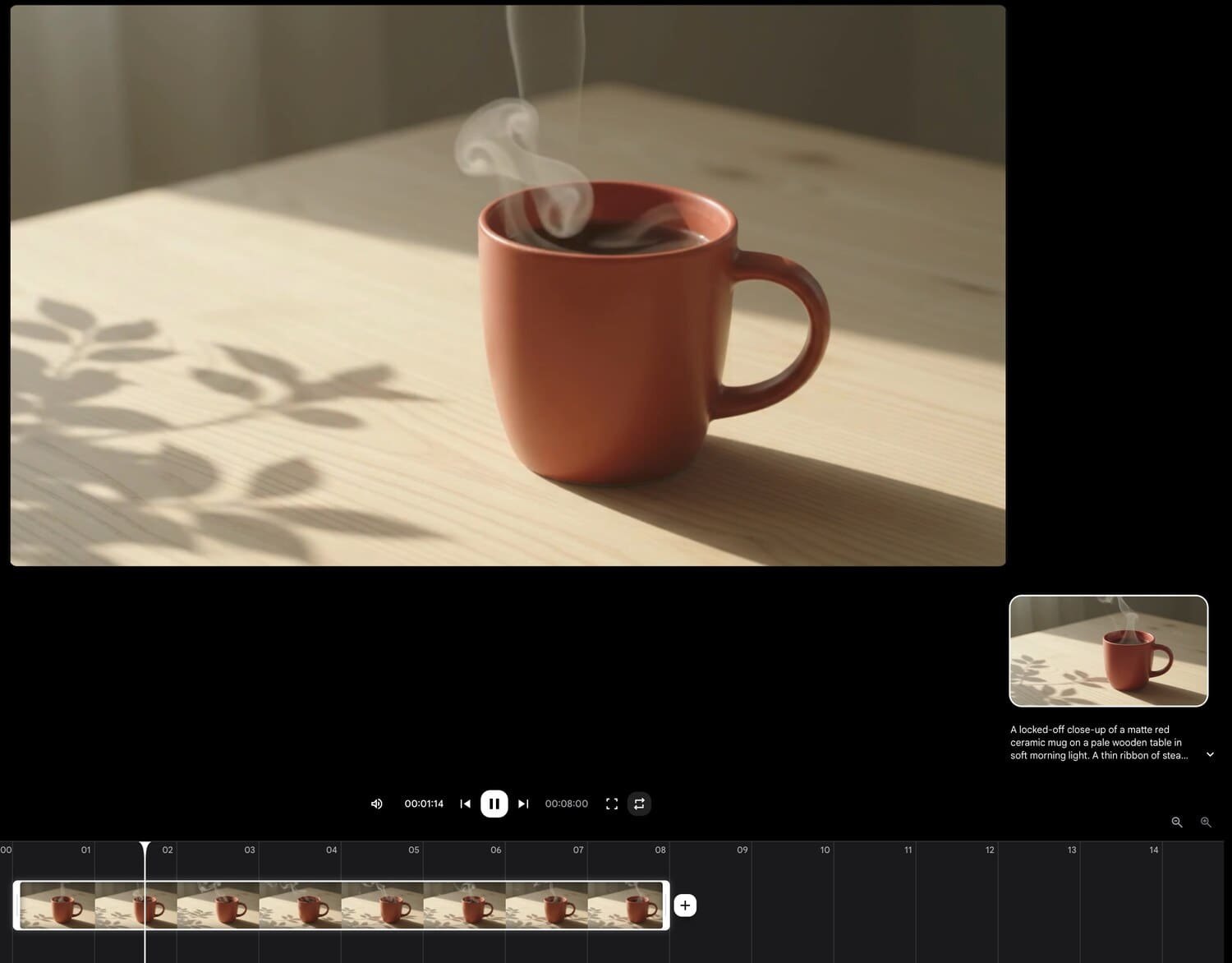
Flow renders the steam most clearly, curling above the mug throughout the clip alongside the familiar leaf shadow on the light wood. At times the vapor looks more like stage fog than the thin ribbon the prompt describes, and the wider frame gives the tabletop a lot of space. That empty area is handy for titles or graphics, and if the steam overpowers the product, you can trim to a calmer section of the clip.
Importing a Firefly clip into Premiere Pro
Step 1: on Firefly's video generation screen, click Download next to the finished clip, then keep the original MP4 file in the project's media folder. Step 2: in Premiere Pro, choose File > Import (or press Cmd+I on a Mac, Ctrl+I on Windows) and select the MP4 file. The clip will appear in the Project panel.
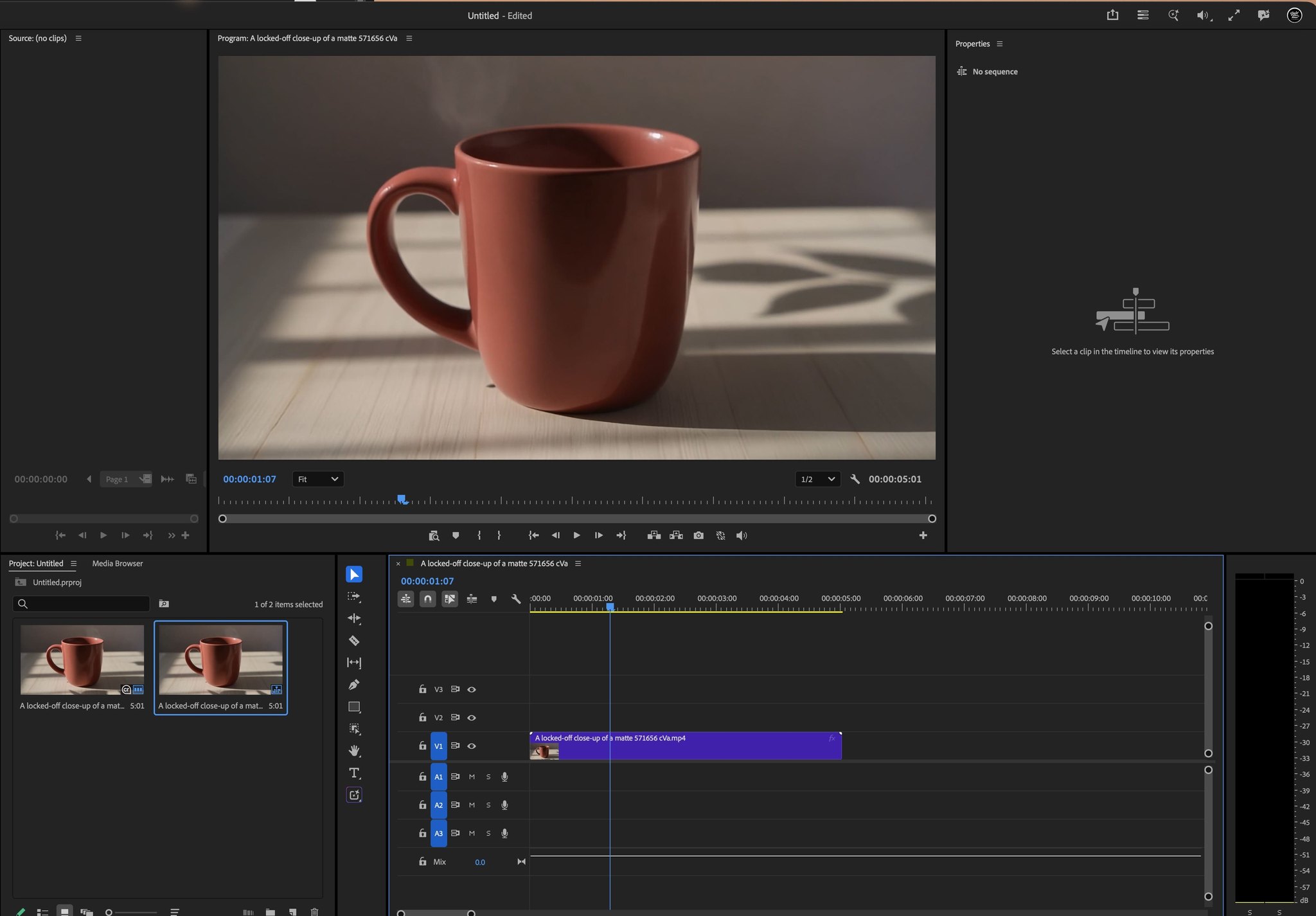
Step 3: drag the clip from the Project panel onto a video track in an existing sequence. If you only want to test it on its own, right-click the imported clip and choose New Sequence From Clip. Step 4: play back the whole edit, then trim the part that fits the surrounding shots. For this mug clip, for example, use the first few seconds, when the leaf shadow changes most noticeably.
Notes for real projects
If you are working for a client, check usage rights for any reference material, and get permission when a clip contains identifiable people, brands, or music. Commercial usage rights vary by platform, the model you chose, and the accompanying license terms. You should also review the client's AI-content disclosure requirements before delivering the edit. Keep in mind as well that this test used a single prompt and was sponsored by Adobe, so the observations apply only to the three clips generated. Prices and credits were checked in November and may change depending on your plan.
For editors already working in the Adobe ecosystem, Firefly makes the most sense: its native clip is 1920 x 1080 px and imports into Premiere Pro in a few steps, while Flow's 720p needs an extra upscale if you want to use it in a large-format edit. Runway has the advantage when you need a shot of an exact length, and Flow is worth trying when steam or subtle motion is the main point of the shot. Still, this conclusion comes from a single prompt and a test with a sponsorship element, so don't treat it as a ranking. The safe approach is to run the exact shot you need through all three tools, compare the credits spent, and only then choose where to pay.
Source: Guiding Tech (how-to)
Reviewed by: Hero Association