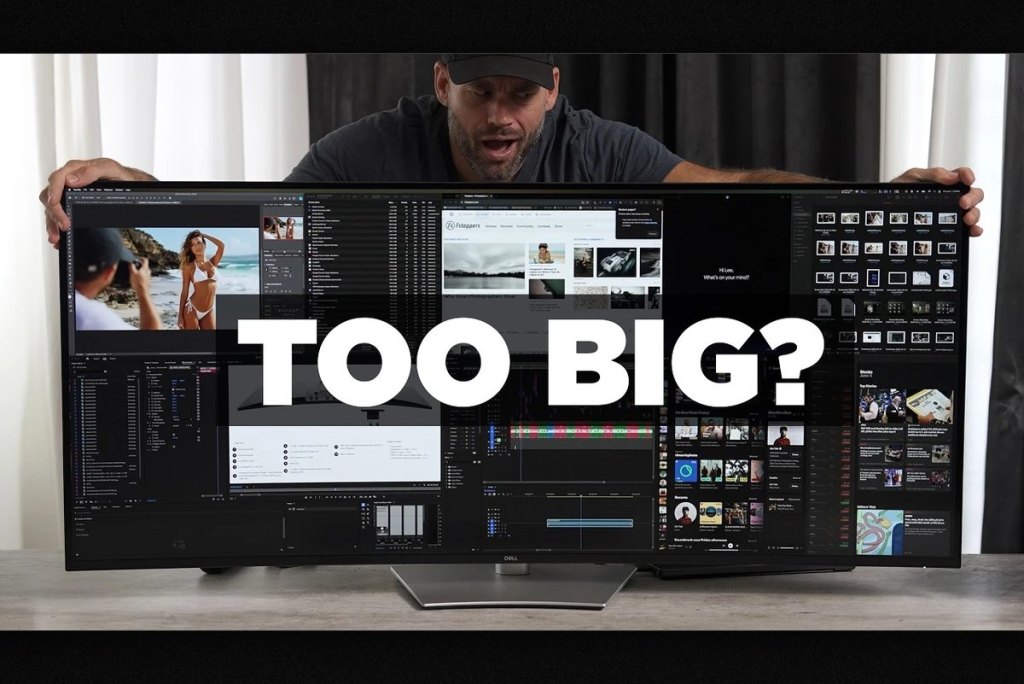
The image quality is excellent, but macOS scaling and a slight curve kept this tester on his four-4K-monitor setup instead of switching to the Dell UltraSharp 52.
- Dell UltraSharp 52 Thunderbolt Hub Monitor: a 51.5-inch curved display, 6144 x 2560 px, 120 Hz, doubling as a USB-C hub
- Accurate color and good contrast, but pixel density is only about 129 ppi, lower than a 27-inch 4K display (about 163 ppi)
- The biggest obstacle is macOS scaling, followed by the slight curve, which distorts straight lines in Photoshop
- It costs about 3,000 USD, versus about 1,300 USD for four 27-inch Dell 4K monitors with a mount
- The stand is hard to level, and the version without a stand is about 700 USD cheaper
Table of Contents
One cable for the whole desk
For about the past two years, this tester has worked on a setup of four 4K monitors, a configuration that is a pain to assemble and not much to look at, either. So when the Dell UltraSharp 52 Thunderbolt Hub Monitor arrived, with a 51.5-inch curved panel at 6144 x 2560 px and a 120 Hz refresh rate, he wanted to know whether one giant display could replace a pile of separate monitors.
This is not just a big monitor, but also a USB-C hub. A single cable lights up the entire screen at full resolution and 120 Hz. The essential ports sit on the back, while a few more stick out from the front edge, which makes plugging and unplugging easy. The tester's four-monitor setup also runs off one cable, but it relies on the iVANKY FusionDock Ultra, one of the most powerful docks available today, whereas the Dell folds most of those functions into the monitor itself.
Great image, but lower pixel density
In terms of design, the Dell is far tidier than four monitors. Colors are accurate, contrast is very good, and blacks are deep enough. Resolution is where it takes a step back: a 27-inch 5K display has about 218 pixels per inch (ppi), the tester's 27-inch 4K monitors have about 163 ppi, and the Dell has only about 129 ppi. At a normal sitting distance the difference is still visible, but text remains readable, and he figures that if he pushed the display a few inches farther back, he would barely notice it anymore.
Two problems with the Dell
The first problem sounds a little funny: the monitor doesn't sit level on its stand. One side is always higher, and no matter how he adjusts it, it drifts crooked again. At least one reviewer on Dell's own site complains of exactly the same thing. Dell sells a version without the stand at a lower price, and at the time of testing it came out 700 USD cheaper in total, so the tester guesses that a third-party stand would hold the display straighter. Crookedness aside, the stand raises and lowers smoothly and tilts back and forth to place the display at eye level.
The second problem is more serious for the tester, because he records his screen constantly to make videos. On the four-monitor setup, he just presses Command-Shift-5, chooses full-screen recording, and clicks the exact display he wants to capture. With the Dell, he has to record the entire frame and then crop it in Premiere, which costs both time and system resources, or draw a custom capture region by hand, and that approach breaks as soon as a window opens off-center or at a different size.
A slight curve that is still annoying
This may be the least curved curved monitor on the market. The benefit of a curve is that the edges of the screen stay the same distance from your eyes as the center, and if he were gaming, he would want a much stronger curve. Even so, such a gentle curve surprised him: working in Photoshop with bounding boxes and straight lines, he saw straight lines appear distorted in the first few days. Reading web pages or looking at charts is fine, but for photo and video work, not being able to see perfectly straight lines bothered him a lot.
One big display versus four small ones
Four separate monitors can't be used as one giant canvas, and macOS doesn't let you stretch a window across all four, but for the tester that is actually an advantage: when he fullscreens a video, it fills exactly one display instead of taking over everything. On the Dell, previewing a file from a small window expands it across all 52 inches, so he has to shrink it or lean far back to view it. Four monitors also give him four menu bars, one at the top of each display, whereas on the Dell macOS puts every app's menu in the top-left corner, so working in the bottom-right corner still means moving the cursor all the way up there.
The Dell can emulate multiple displays: plug in extra cables and you can split it into a narrow display on the left and a large one on the right, or a large one in the center with two flanking displays. The tester tried this, and it solves most of the menu bar problem. Still, because his four monitors are all angled straight toward him, every one of them is comfortable to use, while on the giant display the far edges are much farther away than the center, so using them becomes a chore.
Scaling is the biggest barrier
The real reason the Dell doesn't suit the tester is that he couldn't get scaling right on macOS. At the smallest scaling setting, text is slightly too small, so he moved the display closer, but then the low pixel density showed, and the edges looked like reading a sheet of paper rotated at an angle. At the next setting up, everything is too big. Pushing the display farther away makes the image sharper, but he loses the space he needs to keep 10 apps open at once.
He also tried BetterDisplay, an app that lets you fine-tune scaling on macOS, but the in-between settings looked noticeably softer, because that is how macOS handles scaling. Windows offers more options, and he got far better results there. Even so, one reviewer on Dell's site returned the monitor because he couldn't get scaling right on Windows either, so this isn't a Mac-only issue. With four 27-inch monitors, the tester found exactly the distance at which everything is both comfortable and sharp.
The tester's verdict
After testing, the tester decided that the ugly, awkward four-monitor setup is still the best fit for him, because if he needs better image quality, he can buy better monitors. Even so, he still highly recommends the Dell: the image quality, color accuracy, and size are all impressive, and if you are not as picky as he is about resolution, scaling, or curvature, you will love it.
If you prioritize productivity and dislike curved displays, four monitors remain a much cheaper route. His entire setup, with four 27-inch Dell 4K monitors on a four-monitor mount, cost about 1,300 USD, while the 52-inch Dell costs about 3,000 USD.
The 52-inch Dell shows how good an ultrawide display can be, yet it is still held back by the price of low pixel density: at about 129 ppi, everything depends on whether the operating system scales nicely. For Mac users who work with photos and video, softer scaling at intermediate settings and a curve that distorts straight lines are significant drawbacks, especially when the price is nearly double that of a four-monitor 4K setup. You should try it on your own machine at your real sitting distance before deciding. If you mainly do office work, read documents, and want a tidy desk with a single cable, the Dell is still a very worthwhile option.
Source: Fstoppers
Reviewed by: Hero Association